Flink
This guide will get you up and running with Apache Iceberg™ using Apache Flink™, including sample code to highlight some powerful features. You can learn more about Iceberg's Flink runtime by checking out the Flink section.
Quickstart environment🔗
The fastest way to get started is to use Docker Compose with the Iceberg Flink Quickstart image.
To use this, you'll need to install the Docker CLI.
The quickstart includes:
- A local Flink cluster (Job Manager and Task Manager)
- Iceberg REST Catalog
- MinIO (local S3 storage)
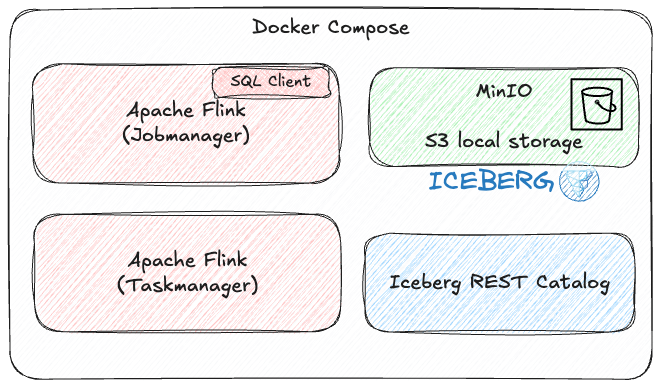
Clone the Iceberg repository and start up the Docker containers:
git clone https://github.com/apache/iceberg.git
cd iceberg
docker compose -f docker/iceberg-flink-quickstart/docker-compose.yml up -d --build
Launch a Flink SQL client session:
Creating an Iceberg Catalog in Flink🔗
Iceberg has several catalog back-ends that can be used to track tables, like JDBC, Hive MetaStore and Glue. In this guide we use a REST catalog, backed by S3. To learn more, check out the Catalog page in the Flink section.
First up, we need to define a Flink catalog. Tables within this catalog will be stored on S3 blob store:
CREATE CATALOG iceberg_catalog WITH (
  'type'                 = 'iceberg',
  'catalog-impl'         = 'org.apache.iceberg.rest.RESTCatalog',
  'uri'                  = 'http://iceberg-rest:8181',
  'warehouse'            = 's3://warehouse/',
  'io-impl'              = 'org.apache.iceberg.aws.s3.S3FileIO',
  's3.endpoint'          = 'http://minio:9000',
  's3.access-key-id'     = 'admin',
  's3.secret-access-key' = 'password',
  's3.path-style-access' = 'true'
);
Create a database in the catalog:
Creating a Table🔗
To create your first Iceberg table in Flink, run a CREATE TABLE command.
Let's create a table using iceberg_catalog.nyc.taxis where iceberg_catalog is the catalog name, nyc is the database name, and taxis is the table name.
CREATE TABLE iceberg_catalog.nyc.taxis
(
    vendor_id BIGINT,
    trip_id BIGINT,
    trip_distance FLOAT,
    fare_amount DOUBLE,
    store_and_fwd_flag STRING
);
Iceberg catalogs support the full range of Flink SQL DDL commands, including:
Writing Data to a Table🔗
Once your table is created, you can insert records.
Flink uses checkpoints to ensure data durability and exactly-once semantics. Without checkpointing, Iceberg data and metadata may not be fully committed to storage.
Then you can write some data:
INSERT INTO iceberg_catalog.nyc.taxis
VALUES (1, 1000371, 1.8, 15.32, 'N'), (2, 1000372, 2.5, 22.15, 'N'), (2, 1000373, 0.9, 9.01, 'N'), (1, 1000374, 8.4, 42.13, 'Y');
Reading Data from a Table🔗
To read a table, use the Iceberg table's name:
Creating a Table with Inline Configuration🔗
Creating a Flink catalog as shown above, backed by an Iceberg REST Catalog, is one way to use Iceberg in Flink.
Another way is to use the Flink connector and specify the catalog connection details directly in the table definition. This still connects to the same external Iceberg REST Catalog - the difference is just that you don't need a separate CREATE CATALOG statement.
Create a table using inline configuration:
Note
The Flink table definition here is registered in Flink's default in-memory catalog (default_catalog), but the connector properties tell Flink to store the Iceberg table and its data in the same REST Catalog and S3 storage as before.
CREATE TABLE taxis_inline_config (
    vendor_id BIGINT,
    trip_id BIGINT,
    trip_distance FLOAT,
    fare_amount DOUBLE,
    store_and_fwd_flag STRING
) WITH (
    'connector'            = 'iceberg',
    'catalog-name'         = 'foo', -- Required by Flink connector but value doesn't matter for inline config
    'catalog-type'         = 'rest',
    'uri'                  = 'http://iceberg-rest:8181',
    'warehouse'            = 's3://warehouse/',
    'io-impl'              = 'org.apache.iceberg.aws.s3.S3FileIO',
    's3.endpoint'          = 'http://minio:9000',
    's3.access-key-id'     = 'admin',
    's3.secret-access-key' = 'password',
    's3.path-style-access' = 'true'
);
Shutting down the quickstart environment🔗
Once you've finished with the quickstart, shut down the Docker containers by running the following:
Learn More🔗
Note
If you want to include Iceberg in your Flink installation, add the Iceberg Flink runtime to Flink's jars folder.
You can download the runtime from the Releases page.
Now that you're up and running with Iceberg and Flink, check out the Iceberg Flink docs to learn more!